Screen Refresh Rate Test
100% local, hardware-driven monitor Hz tester. Benchmark your display FPS and detect frame skipping in real time with zero lag and zero extension bloat.
What is This Tool
This free online tool instantly measures the actual refresh rate your monitor is running at right now — no downloads, no installs, no account needed. Just open the page and the test starts automatically. In seconds you'll see your display's real Hz, frame timing, and whether the output is smooth and stable or showing signs of stutter.
Most people assume their monitor is running at the advertised spec — 60 Hz, 144 Hz, 240 Hz — but the actual output can differ. A cable with insufficient bandwidth, an incorrect display setting, a browser with hardware acceleration turned off, or a power-saving mode can silently cut your refresh rate without any obvious warning. This tool uses your browser's requestAnimationFrame API to measure exactly how many frames your screen is rendering each second and reports it in plain numbers.
How to Use
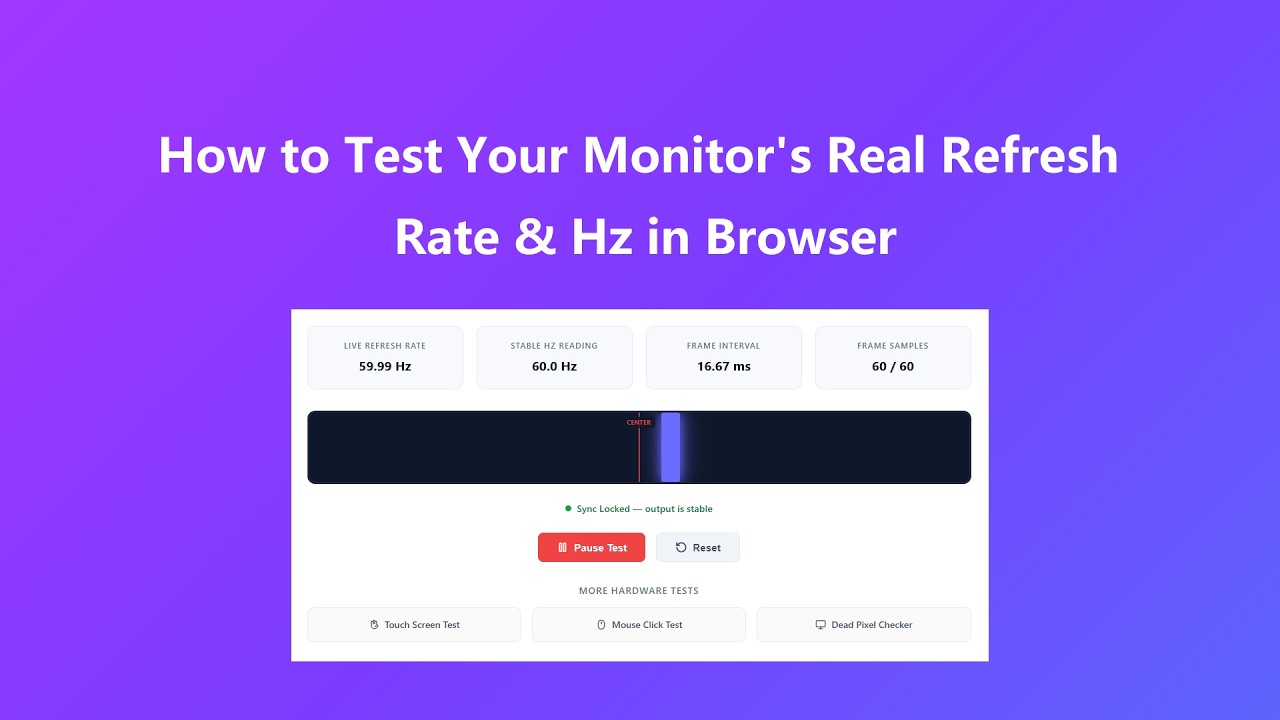
The test runs automatically when you load the page. Here's how to get the most accurate reading:
- Wait a few seconds for the "Frame Samples" counter to fill up. The Hz reading becomes reliable once at least 30–60 frames have been collected.
- Watch the glowing bar sweep back and forth across the dark track. A smooth, even motion means your display is outputting frames consistently. Visible skipping or uneven pacing points to frame drops or stutter.
- Check the "Stable Hz Reading" card — this shows the settled average once enough samples are collected. Compare it to your monitor's rated spec.
- Click Pause Test to freeze the numbers if you want to record or screenshot a specific reading. Click it again to resume.
- Click Reset to clear all samples and start a fresh measurement — useful after changing display settings.
Key Features
- Real-time Hz display updates every frame using
requestAnimationFrame, giving you live feedback on what your monitor is actually doing. - A "Stable Hz Reading" card locks in once enough samples are collected, so you get a clean settled number rather than a constantly jumping figure.
- Frame interval timing shows the milliseconds between each rendered frame — lower and more consistent means smoother output.
- The animated sync track gives you a visual feel for frame pacing that raw numbers alone can't convey.
- Jitter detection flags when frame timing is inconsistent, which is often the first sign of a driver issue, resource conflict, or throttled display pipeline.
- Runs entirely in your browser — nothing is sent anywhere, and there's nothing to install.
Common Use Cases
This tool is useful any time you need to verify or troubleshoot your display's actual output:
- Confirm a new gaming monitor is actually running at 144 Hz or 240 Hz after setup, not defaulting back to 60 Hz due to a cable or settings issue.
- Check whether your laptop throttles the display refresh rate when unplugged or in battery-saver mode.
- Verify that enabling G-Sync or FreeSync hasn't introduced timing irregularities at your current frame rate.
- Quickly check refresh rate when moving a browser window between two monitors with different specs.
- Diagnose unexplained visual choppiness — if the Hz reads lower than expected, the cause is display-side rather than inside the game or application.
Frequently Asked Questions
Why does the live Hz number fluctuate slightly instead of showing a steady integer?
Your OS and browser introduce tiny scheduling variations when delivering frames to the rendering context. A 144 Hz display will rarely output exactly 144.00 Hz on every sample — you'll typically see values hovering around the target, like 143.8 or 144.2. This is normal behavior. The "Stable Hz Reading" averages these out over time to give you a reliable settled number.
Can this test override my OS power-saving mode or browser frame rate cap?
No — and that's actually useful. The tool reads the frame rate that your OS and GPU driver are actually delivering to the browser. If a power plan or background process is capping output, the reading will reflect that throttled rate accurately, which is exactly the kind of issue this tool is designed to surface.
How is this different from the FPS counter in a game or GPU software?
In-game counters measure how fast the game engine produces frames, not how fast the display is actually showing them. This tool measures the display pipeline directly — specifically, how often your screen's vertical sync cycle is completing. That distinction matters when diagnosing issues where the game runs fast but the monitor output feels wrong.
I have two monitors. Which one does this test measure?
It measures the screen where the browser window is currently active. Drag the browser window to a different monitor and the reading will update to reflect that display's refresh rate. This makes it easy to compare both panels side by side.
My monitor is rated at 165 Hz but the test shows 60 Hz. What's wrong?
This almost always comes down to one of three things: the cable doesn't support the bandwidth needed (DisplayPort 1.4 or HDMI 2.1 are typically required for high refresh rates), the display's refresh rate hasn't been set correctly in Windows Display Settings or macOS System Settings, or hardware acceleration is disabled in your browser settings. Check all three before assuming a hardware fault.
Advanced Tips
Getting the most accurate reading takes a bit more than just loading the page:
- Close other browser tabs and background apps before testing. Anything competing for GPU resources can introduce frame timing noise that skews the reading.
- Make sure hardware acceleration is enabled in your browser. In Chrome, go to Settings → System and confirm "Use hardware acceleration when available" is on. In Firefox, check Settings → Performance.
- Film the animated sync track with your phone's slow-motion camera. At 240fps you can count individual frames and visually verify whether the display is actually running at the detected rate.
- Run the test in full-screen mode (F11 on most browsers) to reduce the load from browser UI rendering, which can affect timing on lower-end hardware.
- If you're on a laptop, plug into AC power first. Many laptops cut refresh rate aggressively on battery to save power, and the test will show exactly what rate they settle on.